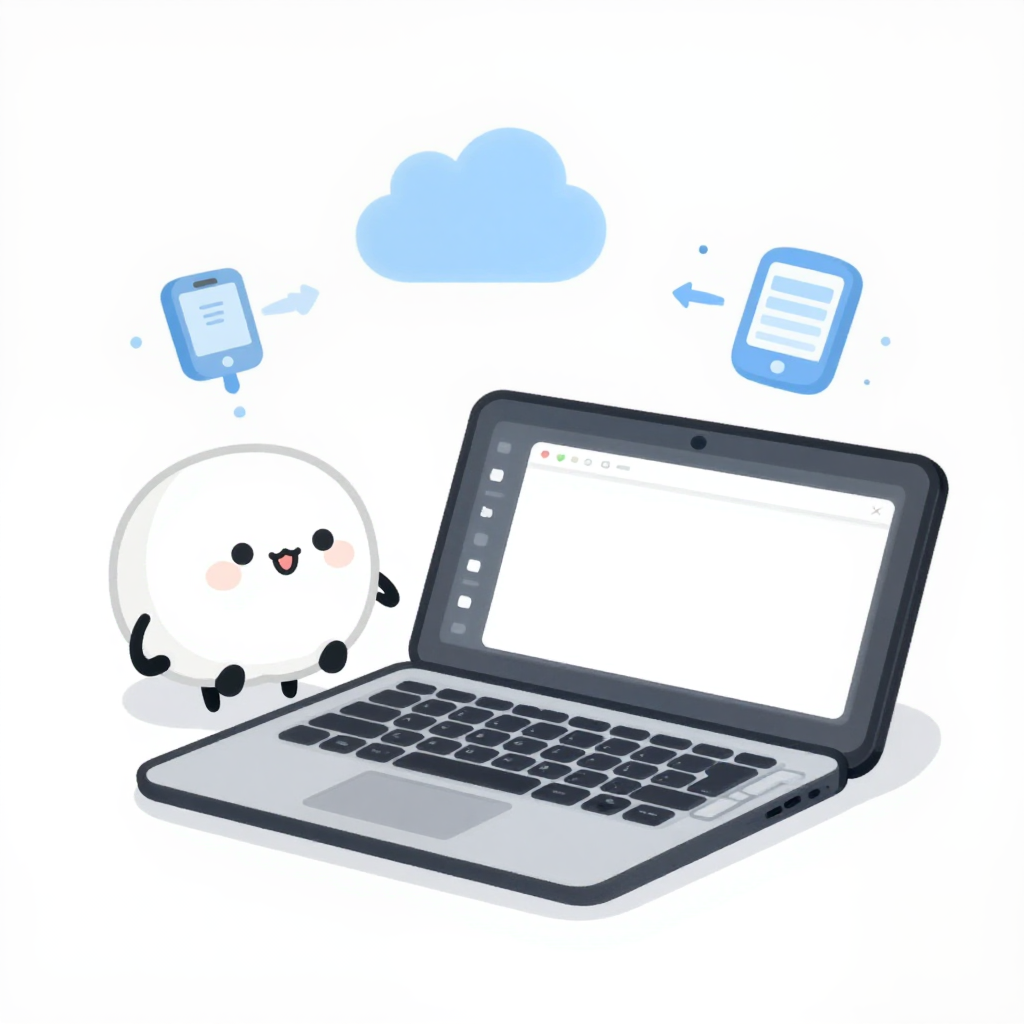
What Is Cloud Storage: A Plain-English Explanation
A practical guide to what cloud storage is, how it works, and when it actually helps in daily life.
Cloud storage sounds abstract until you map it to a real problem: keeping files available, backed up, and shareable without relying on a single device. If you have ever worried about losing photos after a laptop failure, or wanted the same document on your phone and computer without emailing yourself, you have already bumped into the reason cloud storage matters.
Quick Answer
Cloud storage means your files are stored on remote internet-connected servers instead of only on the device in front of you. You still use those files through normal apps and folders, but the account—not one physical machine—becomes the main anchor.
The Simple Explanation
At the simplest level, cloud storage moves the responsibility for keeping your files available from one device to a service you can reach over the internet. That is why services like Google Drive, Dropbox, and OneDrive feel convenient: they make the same file available across devices, simplify sharing, and lower the risk that one broken laptop takes everything with it.
A useful mental shortcut is this: local storage stays with the device, cloud storage stays with your account. That one difference explains most of the practical benefits.
How It Actually Works
The normal flow is straightforward:
- You upload or save a file into a synced folder.
- The provider stores that file in a remote data center.
- Your account makes that file available on other devices where you sign in.
- If syncing is enabled, changes on one device show up on another shortly after.
That does not mean the internet magically replaces your computer. In most setups you still have local files, cached copies, or selective offline access. The cloud layer mainly adds backup, remote access, and easier sharing.
Common Use Cases
Most people use cloud storage in one of three ways:
- Backup: protect files if a device is lost, damaged, or fails.
- Syncing: keep the same files available on multiple devices.
- Sharing: let other people access files or folders without constantly attaching copies.
A student may use it to keep assignments synced between school and home. A parent may use it for photo backup. A small team may use it to keep everyone on the same version of a shared file.
Benefits and Trade-Offs
The main benefit is convenience. Files become easier to recover, easier to reach, and easier to share. It can also reduce the pain of hardware failure.
The trade-off is dependency. You rely more on account access, provider stability, and internet connectivity. Free plans also come with limits, especially if you store videos or full-device backups.
A practical way to judge the trade-off is to ask this: does easier backup and cross-device access solve a daily annoyance for you? If yes, cloud storage is often worth it. If not, simple local storage may still be enough.
How to Get Started
A low-risk way to begin:
- Pick one provider you already trust.
- Upload one non-critical folder first.
- Verify syncing works on your laptop and phone.
- Check storage limits and sharing permissions before moving more important files.
Starting small is better than moving your entire digital life in one weekend.
Frequently Asked Questions
Does cloud storage replace local backup completely?
No. It is better treated as one layer of protection and convenience, not the only place your important files live.
Is free cloud storage enough?
Often yes for documents and a modest number of photos. Large media libraries or device backups usually hit limits quickly.
Can I work offline?
Usually yes for files you explicitly keep available offline, but the exact behavior depends on the provider.
Bottom Line
Cloud storage is most useful when you want easier backup, simpler sharing, and access across devices. You do not need to overcomplicate it: start small, learn the limits, and keep a second backup for anything you truly cannot afford to lose.